Instruct the learner to check in their spam/junk folders. Their email client may be blocking it. If they still can’t find the password reset, you can manually reset their password for them.
My learner registered with the wrong email address.
You can update the learner’s email/username without creating a new account.
My learner completed training but isn’t marked as complete.
There are a few reasons this might be happening:
- The learner completed the course but they weren’t connected to the internet at the time and their progress wasn’t saved.
- The learner did not actually reach the last screen of the course.
- They still need to complete the eSignature module of the course (only applicable to a few courses).
We typically recommend logging in as the learner to verify that the course was finished and saved correctly. Once you have confirmed that, you can change their course status to mark them as complete.
Can we automate the user creation and enrollment process?
Yes, we offer several options for automating the creation and enrollment process.
Can we customize the email notifications?
No, we do not offer the ability to customize email notifications at this time. However, you can choose which email notifications you use.
How do I create additional Training Administrators?
TAs cannot create other TAs directly.
Can I send reports to people who don’t have accounts in the UE Learning Portal?
Yes, scheduled reports can be sent to any valid email address.
Which report should I use?
Most TAs will use two reports: a completion report and a non-complete report. See our page below to see how to access and create your own reports.
How do I let a learner retake a course?
You’ll need to archive their completion and re-enroll them.
Archiving Past Completions and Re-Enrolling Learners in Courses
Can I change a learner’s status in a course?
Yes, you can reset their progress or mark them as complete.
Do I have to manually enroll learners in courses?
No, you can use self-enrollment links for both courses and learning plans.
Why are my learners getting an Accessed Denied error when trying to register for a learning plan?
The most common cause is that the learning plan is unpublished or locked.
Should I use a Course or a Learning Plan?
Most institutions choose to enroll their learners directly into courses, rather than using a learning plan.
How do I delete a learner’s account?
We strongly recommend against deleting accounts. Deleting an account will also delete the associated training history which we recommend that you retain for legal reasons. Instead, we suggest deactivating their account.
Can I merge duplicate learner accounts?
Yes, Training Administrators can merge two non-TA learner accounts.
Can I change a learner’s email address/username?
Yes, Training Administrators can update a learner’s email address, which will then update their username.
One of my learners changed from a student to employee. Should I create an entirely new account for them?
Update an existing account whenever possible to preserve training history. See our guide on updating a learner’s email address if needed.
Why can’t I find a learner I know already exists?
The learner may have registered their email with another institution or there may be a typo in their account information. Try searching for the learner by their name rather than email address, or vis-versa. Please reach out to launch@ue.org for more assistance.
Why was I assigned a training?
Training assignments are determined by your institution.
Contact your Training Administrator for assignment details.
Why can’t I login?
The most common causes are an incorrect password, an inactive account, or issues with the username.
Password Issues
- Verify that you are using the correct password.
- Try a private/incognito browser window.
- Reset your password.
Username Issues
- Confirm that you’re using the correct email address.
- Check for spelling mistakes.
Why am I receiving training reminder emails?
You are receiving a reminder email because a Training Administrator at your institution opted into enabling them for the institution. You may receive one if you are enrolled in a course but haven’t finished it yet.
Complete the training or contact your Training Administrator if you believe the reminder was sent in error.
Why am I locked out of a course/learning plan?
Your learning plan or course may have prerequisites, deadlines, or access restrictions.
Contact your Training Administrator for assistance.
Who should I contact for help with training?
If you’re unsure what training to take or why you were assigned training, please contact your Training Administrator.
If you’re dealing with a site or course functionality issue, please contact support by submitting a ticket or opening a chat request.
Which course do I need to take?
Your Training Administrator determines which training is required.
Check your assigned training or contact your Training Administrator if you are unsure.
Where’s my course certificate?
Certificates are automatically emailed to you after you finish a course. There might be a slight delay, but please check your email’s spam or junk folders if you still haven’t received your certificate after 10 minutes. If you still can’t find it in your email, you can download your certificate from your My Activities page.
What is my branch code?
A branch code connects your account to your institution in our learning portal.
Contact your Training Administrator if you do not know your branch code.
The learning portal isn’t saving my course progress.
Course progress may not save if the browser closes unexpectedly or if your internet connection drops/changes while you’re taking the course.
- Verify that you are still connected to the internet.
- Clear your browser’s cookies and cache before re-launching.
- Try a different browser.
The course I need to take is missing, what do I do?
Your training may not have been assigned yet or the self-registration link was blocked by your email protections.
If you are trying to self-enroll in a course, you can do so from the course catalog access through the lefthand menu.
Otherwise, contact your Training Administrator to verify that you have been enrolled in the correct course or learning plan.
My course won’t open.
This is usually caused by browser or network issues.
- Try another browser.
- Clear cache and cookies.
- Disable browser extensions.
My course won’t advance to the next page.
- Make sure that you are still connected to the internet.
- Try a different browser.
- Clear your browser’s cookies and cache.
It says my username is already taken.
You may already have an account.
Try using the Forgot Password option before creating a new account.
I’ve taken a UE training before. Why can’t I login now?
Your account may be inactive or you may be using the wrong login method.
Try resetting your password and contact your Training Administrator if the issue continues.
I didn’t receive my password reset email.
Check your spam or junk folder first.
- Verify the email address used for your account.
- Wait a few minutes and try again.
- Contact your Training Administrator if the email never arrives.
I created an account but forgot to add information in the additional fields. How do I fix that?
You can edit your profile by clicking on the User Icon in the top-right corner of the screen.
How do I retake a course and get a new certificate for it?
You must be re-enrolled in the course before you can earn a new certificate.
Contact your Training Administrator for assistance.
How do I register for an account?
You can register by using a special link provided to you by your Training Administrator or by clicking, New User on learn.ue.org. You will need a branch code to register.
How do I print my course certificate?
You can download and print your certificate in two ways:
- Downloading and printing the certificate from the completion email.
- Going to My Activities on your Learner Homepage. See our full walkthrough here.
How do I enroll myself in a course?
You can enroll yourself in a course through the course catalog which can be accessed through the left-hand menu.
You can find a full walkthrough here.
If you do not see the course, contact your Training Administrator.
Can I upload both new and returning users in one file?
Yes. A file can include both new and returning users when you use the correct fields. The system will update matching existing accounts rather than creating duplicate accounts.
Creating and Updating User Accounts with a Bulk Upload / CSV File
Why did my CSV/bulk upload fail?
Common causes include incorrect headers, mapping User ID instead of Username, missing branch code, incorrect Active values, formatting problems, or using fields that are not supported for that import.
I’m trying to create a learner account, but I’m getting an error that the user already exists. Why can’t I see them?
The learner may have used that email address to register for an account to train with a different institution. This is especially common with students who volunteer at other institutions over the summer. Please reach out to launch@ue.org for assistance.
Can I upload non-UE courses or training materials to the learning portal?
We don’t allow outside courses or training material to be uploaded to the UE Learning Portal. However, you can download our courses and add them to your institution’s LMS instead. Please see our guide on Self-Hosting for more information.
What’s the difference between a Training Administrator, Limited TA, Manager, and Learner?
Learners complete training. Training Administrators manage users, enrollments, progress, and reports. Limited TAs can view learners and pull reports. Managers support a defined group of learners.
I’m a new Training Administrator. Where should I start?
Start with the New TAs – Start Here guide. Training Administrators manage learner accounts, enroll learners, track progress, and generate reports.
What are the Learning Portal password requirements?
The password must:
- Be at least six characters long
- Include letters and numbers
- Be different from your username
- Not be the same as your last three passwords
How do I edit my name or email?
You can edit your name and email address, but not your username. Please note – your username will not be updated until the next time an administrator makes a change to your account.
If you need your username updated immediately, please reach out to support at 877-209-2236.
To edit your name or email address:
- Click on the User Profile circle in the top-right corner.
- Click, My Profile.
- Make any updates and click Save.
Once saved, notifications will be sent to the newly listed email address.
What is a branch code? – For TAs
The branch code is your institution’s ID in the learning portal and what ties your learners to your institution. For more information, please see this article: Branch Codes
What LMS does UE use?
Docebo
Does UE have an accessibility statement?
United Educators Accessibility Statement:
United Educators recognizes the importance of accessibility in our learning programs. We design all of our training tools with accessibility in mind and we are committed to continual improvements in this area. Most of our courses are accessible as defined by the previous version of the Section 508 accessibility standards. Updated Section 508 standards that more closely align with the version 2.0 of the Web Content Accessibility Guidelines (WCAG 2.0) went into effect in January 2018. Going forward, we are committed to conforming our learning programs to the updated Section 508 standards, including support for WCAG 2.1 Levels A and AA.
Our accessibility statement for the learning portal is available here.
Please see our page on Accessibility and VPATs for more information.
What is a learning plan?
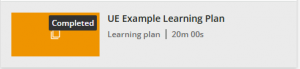
A learning plan is a way to group courses. Learning plans appear as an orange tile in the same area you’ll find your courses.